Two examples of touchpads


Areas
- general touchpad area
- left button
- right button
To click
- move to where you want to click, using the general area
- tap on the touchpad (area 1) or tap on left button (area 2)
To double-click
- as above, but tap twice
To right-click
- move to where you want to tap using touchpad area 1
- and then …
- either tap on right button (area 3)
- or tap with two fingers at once (area 1)
To “click and drag” (or move an item)
- double-tap, but don’t lift your finger after the second tap. Drag the item where you want it
- OR – with your left hand finger – tap and hold the left button (area 2). With your right hand finger, tap and drag
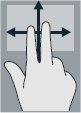 Scroll (through a document or web site)
- Touch main area with two fingers and move up and down (or side to side for horizontal scrolling)
Zoom in or out of a document or web site
 To Zoom in (magnify)
- Touch main area with two fingers held apart
- Pinch them together slowly
To Zoom out
- Touch main area with two fingers held together
- Pinch them apart slowly